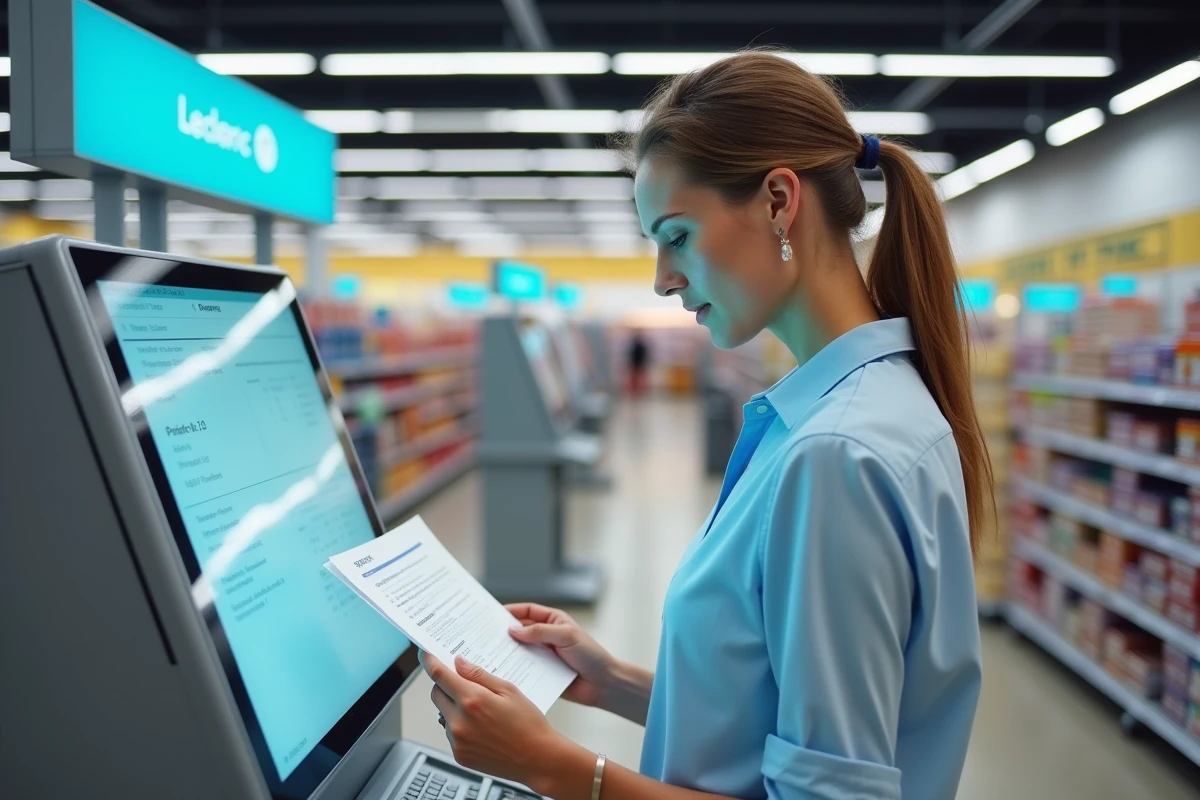
You have a CV to print urgently, a certificate to provide the same day, or vacation photos to develop before tonight. Your printer is broken, or you simply don’t own one. The printing kiosks available in many Leclerc hypermarkets solve this problem in just a few minutes, without an appointment.
File transfer to the Leclerc kiosk: USB key, smartphone, or app
The first question to ask before heading to the store is how to transfer the file to print. Three methods coexist, and the choice depends on the equipment you have on hand.
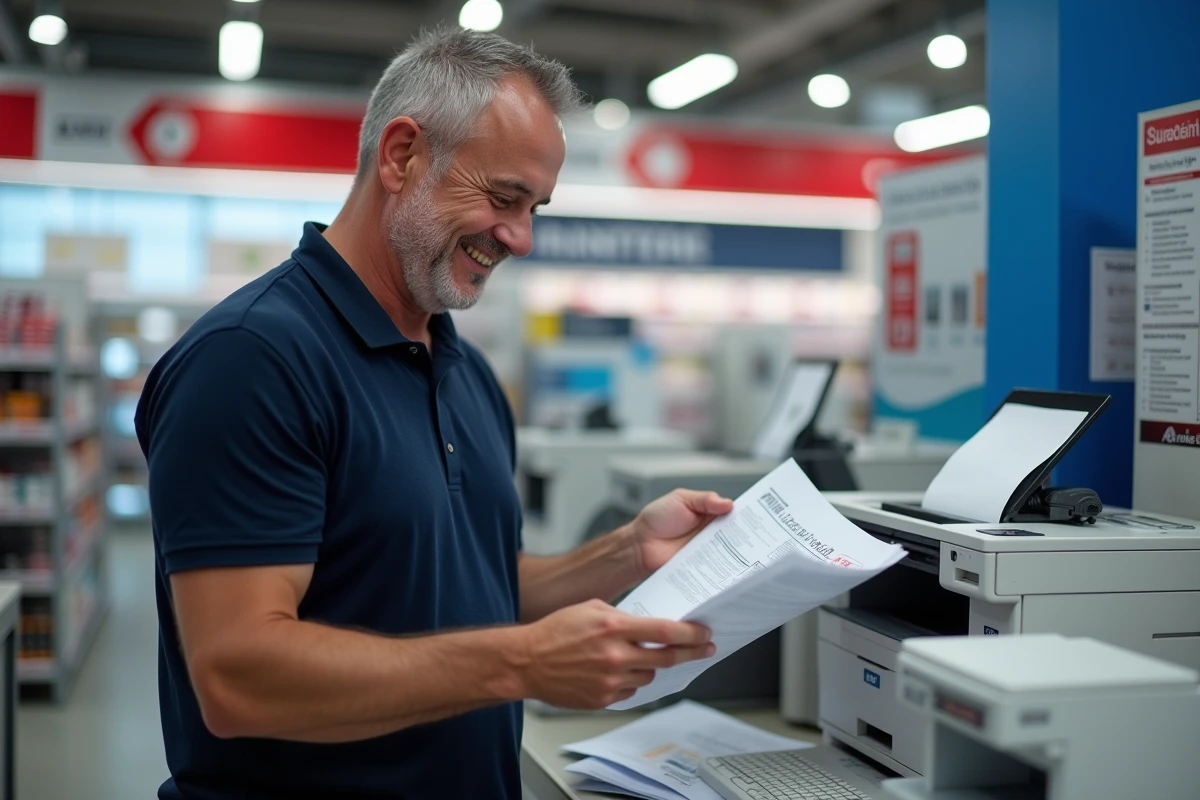
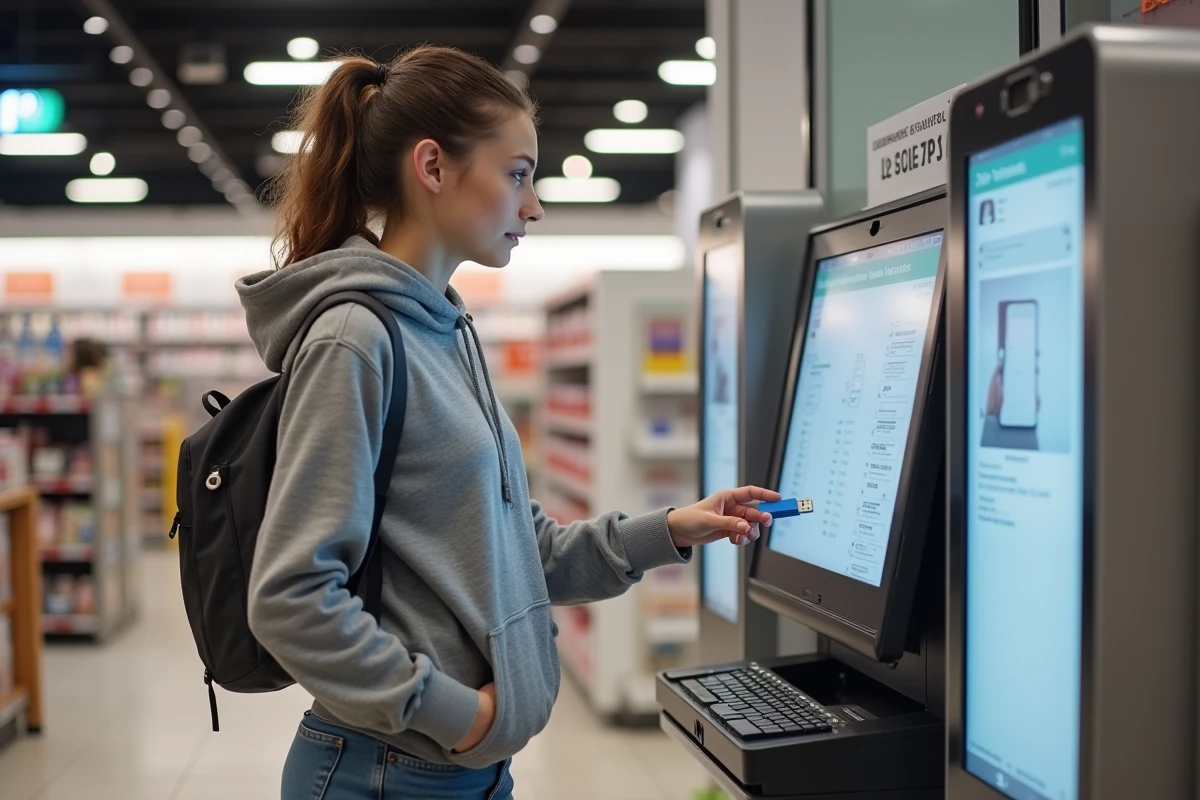
The USB key remains the most straightforward solution. You copy your document (PDF, JPEG, office file) onto the key, insert it into the kiosk, and the touchscreen displays the content. No internet connection required.
The most recent method involves the smartphone. Kiosks equipped with the updated Cewe firmware allow connection via QR code without a USB key or cable. You scan the code displayed on the kiosk screen with your phone, then select the files to send via the Cewe Photo Transfer function, which uses a local Wi-Fi connection.
For those who prefer to prepare everything in advance, the mobile app Photos E.Leclerc – Cewe accepts the sending of PDFs and office files for in-store printing. You can thus print documents at Leclerc after configuring your order from your couch.
Accepted file formats and paper types at Leclerc kiosks
Have you ever had the unpleasant surprise of arriving at a kiosk with an incompatible file? This pitfall can be easily avoided by checking the format before you leave.
Compatible files with Cewe kiosks
The kiosks read the most common formats:
- PDF, the standard for administrative documents, CVs, letters, or invoices. It is the most reliable format for preserving the original layout.
- JPEG and PNG for photos and visuals. JPEG offers a good weight/quality compromise, while PNG preserves transparency if needed.
- Office files (word processing formats) sent via the mobile app. Note that converting a document to PDF before sending avoids layout shifts.
Choosing paper according to use
Standard paper is suitable for text documents: letters, forms, certificates. For photo prints, the kiosks offer photo paper with a glossy or matte finish. The higher grammage of photo paper results in a stiffer and more durable outcome.
Before starting the print, the kiosk screen allows you to choose the format (A4, standard photo sizes) and the number of copies. Take a few seconds to check the preview: a poorly positioned crop is always noticed too late.
Drive pickup and online ordering: saving time on printing
Few people know, but printing at Leclerc is not limited to the in-store kiosk. Several E.Leclerc Drive centers allow you to pick up document prints while doing your shopping.
The process relies on the integration of the Cewe service into the Drive ordering tunnel. You place your order for prints or documents via the app or website, choose the “pickup in store or partner Drive” option, and collect everything without waiting in line at a kiosk.
This option is particularly suitable for bulk photo prints: vacation albums, prints for an event, personalized calendars. For a unique administrative document, the self-service kiosk remains faster.
Leclerc print quality: what affects the final result
The Cewe equipment used in Leclerc kiosks produces acceptable quality for everyday use. A few adjustments can make the difference between an acceptable print and a really clean result.
Source file resolution
A low-resolution file will produce a blurry print, regardless of the quality of the kiosk. For a standard photo print, aim for the highest resolution possible from your device or phone. For a text document in PDF, resolution matters less: a vector PDF remains sharp regardless of the print size.
Settings to check on the kiosk screen
- Color or black and white mode: a text document printed in black and white costs less and prints faster.
- Automatic cropping: on photos, the kiosk sometimes offers cropping. Disable it if your image is already at the correct ratio to avoid cutting off a face or edge.
- The number of copies: check it before confirming. Restarting a print for a forgotten copy wastes time and paper.
If you are printing a document with solid color areas (graphic, poster, presentation), prefer photo or premium paper to avoid smudging on standard paper. Ordinary paper absorbs more ink, and saturated colors may bleed slightly.
The Leclerc kiosks cover most occasional printing needs, from administrative documents to photo prints. The QR code transfer from a smartphone has simplified access to the service, and the option to pick up prints at the Drive eliminates the need to stop at the kiosk. For regular use or larger volumes, comparing with an online printer remains relevant, but for quick printing while doing your shopping, the Leclerc kiosk gets the job done.